

This guide walks you through how to edit, pause (stop), archive, scale, or bulk-manage live campaigns: the core actions you'll use once a campaign is up and running, all from the HUB Campaigns tab.
Editing a Campaign
There are two ways to edit a live campaign, depending on how much you need to change.
Method 1: Quick inline edits (Budget, Dates, Geo, Targeting)
Go to the HUB Campaigns tab. Click the expand arrow on the left of the campaign row (not the pencil icon) to reveal its detail panel.

In the expanded panel, click the pencil icon next to the field you want to change: Budget, CPC Bidding, Start Date, End Date, Geo, or Targeting.

Edit the value inline, then confirm with the ✓ or cancel with the ✗.
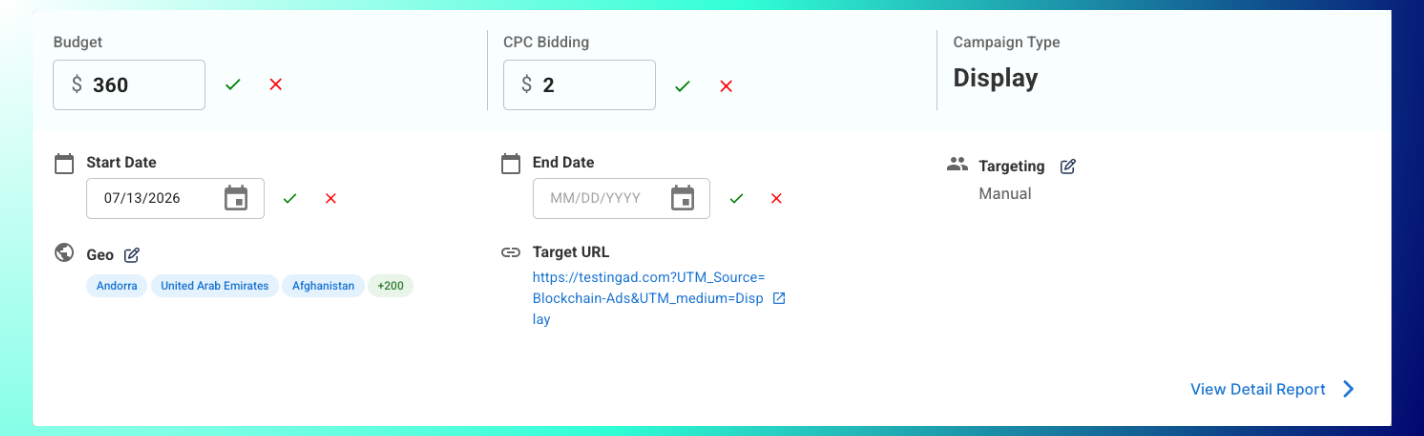
Note: Target URL and Ads (creatives) are visible in this panel but not editable inline.
Method 2: Full campaign editor (Objective, Targeting Segments, Creatives, major changes)
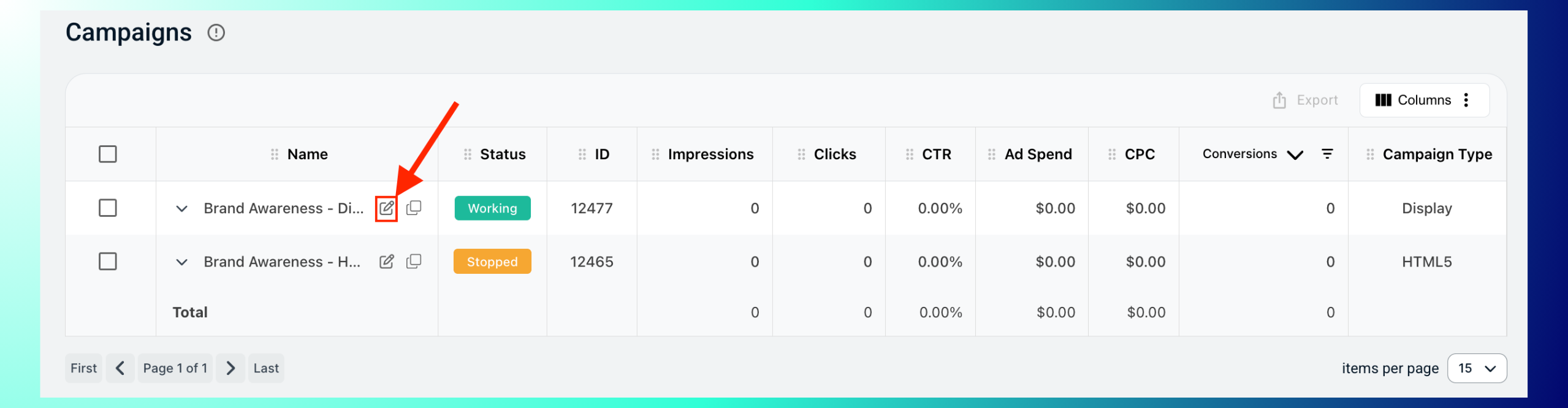
- Click the pencil icon next to the campaign name (in the main row, not the expanded panel).
- This reopens the full campaign builder (Settings, Targeting, Creatives, Summary), pre-filled with your existing configuration.
- Navigate between steps using the stepper at the bottom, or Back/Next.
- Make your changes on any step, then proceed to Summary to save.
Starting, Stopping, and Archiving Campaigns
Pausing (stopping), resuming, and archiving all use the same selection-based action bar.
1. Check the box next to one or more campaigns.

2. An action bar appears at the top: Start, Stop, Archive, plus a ⋮ menu for more options.

3. Click the action you want. It applies immediately to all selected campaigns. Click the ✕ at the right end of the action bar to deselect and dismiss it.
- Stop = pause. Delivery stops immediately, status changes to "Stopped", and no spend occurs while stopped. Data is retained.
- Start = resume a stopped campaign.
- Archive = removes the campaign from your default active view; status changes to "Archived". Data is retained in reports.
Note: This same action bar and Start/Stop/Archive set applies whether you select a single campaign or multiple at once, with no separate "bulk" interface; selecting more checkboxes just applies the action to all of them.
Viewing Archived Campaigns
Archived campaigns don't disappear. They're filtered out of the default view.
1. Use the Filters row: Active, Paused, Archived.
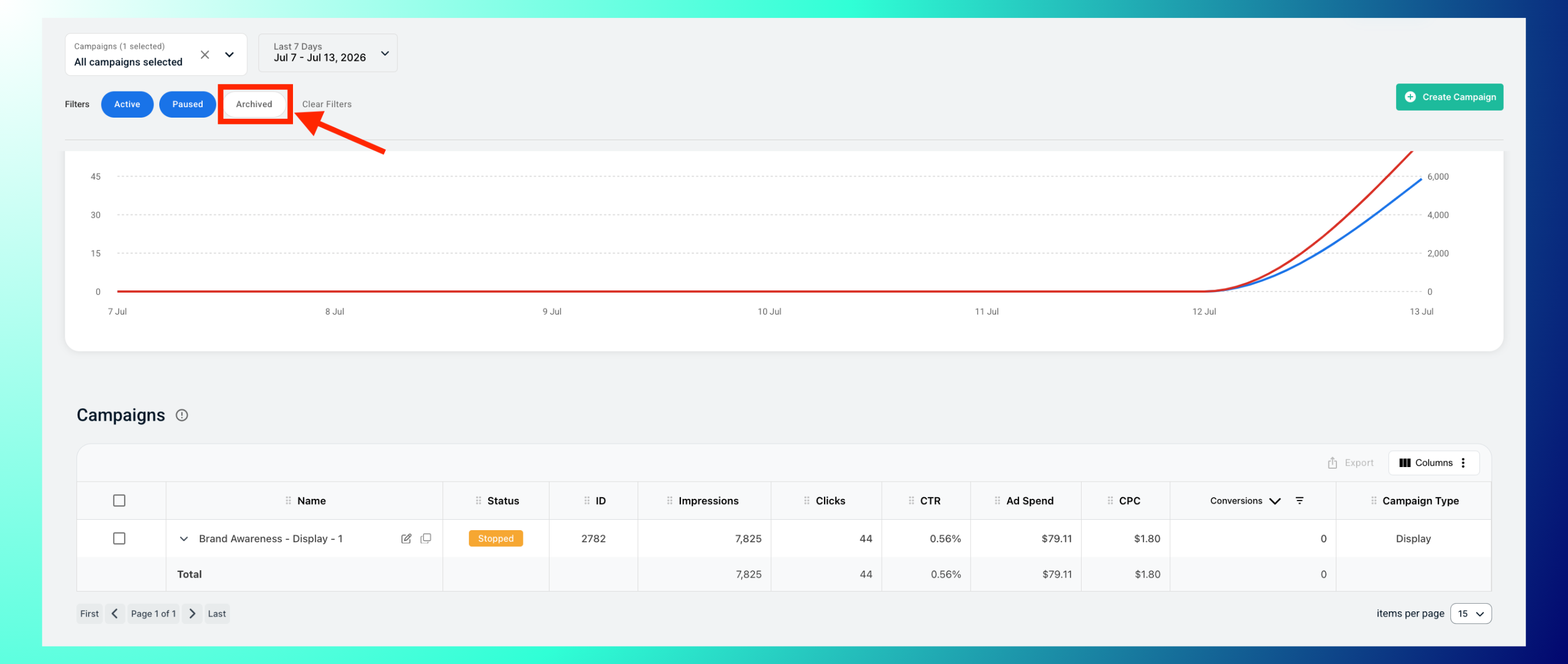
2. Click Archived to show only archived campaigns in the table below. Click Clear Filters to reset.
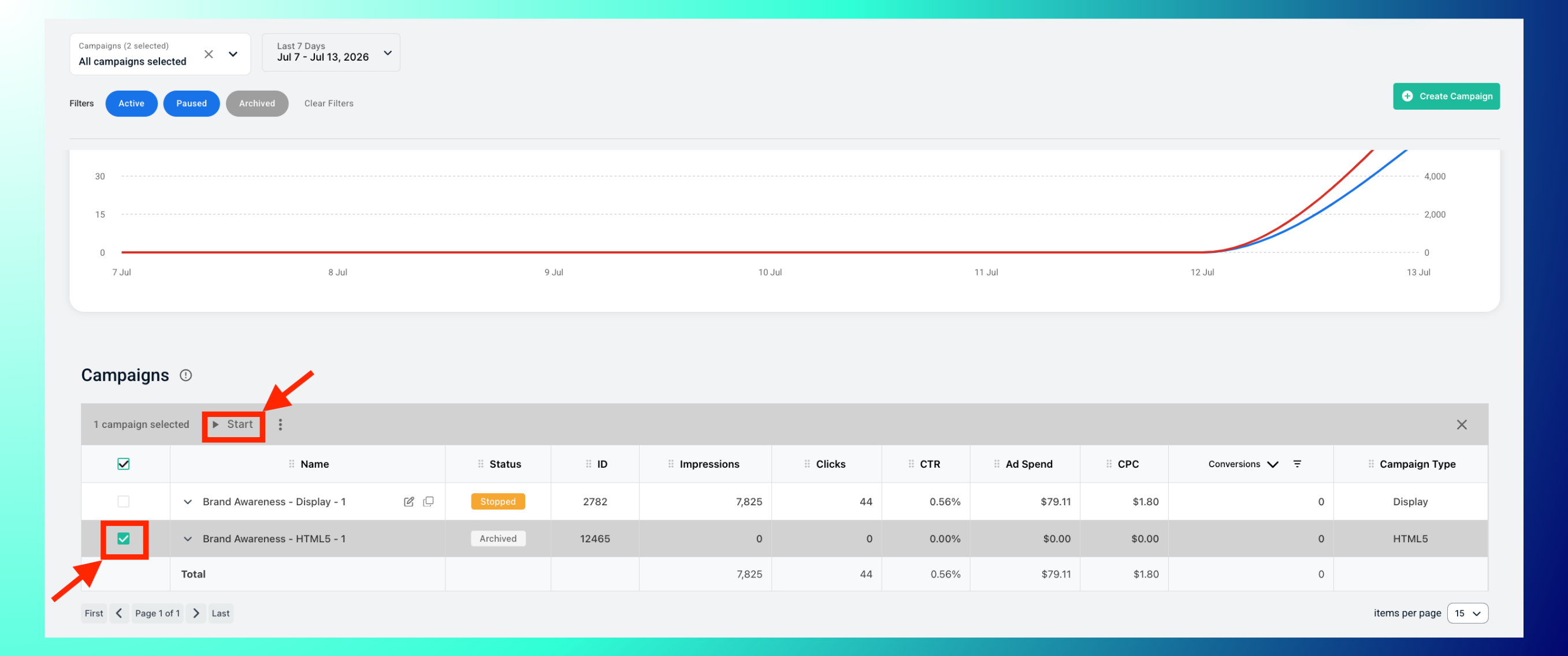
Note: You can reactivate an archived campaign the same way you'd resume a stopped one: select it and click Start.
Scaling a Campaign
Scale once a campaign has produced enough conversions to show which audiences, geos, and creatives work.
- Raise the daily budget gradually, in steps, so delivery stays stable.
- Add a Performance Max campaign built on your best audiences, creatives, and geos.
- Add retargeting once an audience passes roughly 15,000 users.
- Refresh creative about every 15 days to hold response.
Deleting a Campaign
Deletion isn't available as a self-serve action. Archiving is the equivalent step, removing a campaign from your active view while preserving its data. If you need a campaign permanently removed, contact support.
Best Practices: Use Method 1 (inline edit) for quick, frequent adjustments since it doesn't require leaving the Campaigns page. Use Method 2 only when changing targeting segments, creatives, or the Target URL. Use the Archived filter periodically to review old campaigns. Archiving hides a campaign from the default view; it does not delete it. Edit campaigns after 3–5 days of data, so changes are based on real performance signals.
FAQs
- What's the difference between the two edit methods? Inline quick edit (row expand chevron) covers Budget, CPC Bidding, dates, Geo, and Targeting mode. The full editor (name pencil icon) covers everything, including creatives and the Target URL.
- Does stopping a campaign stop billing? Yes. No spend occurs while a campaign is stopped.
- Can I resume an archived campaign? Yes, select it and click Start, the same as resuming a stopped one.
- Does editing or stopping reset performance data? No, metrics continue from the original launch and are retained through stop/archive states.
- Is there a separate bulk action interface? No. Selecting multiple campaigns just applies Start/Stop/Archive to all of them at once via the same action bar.
- When should I scale a campaign? Once it has produced enough conversions to show which audiences, geos, and creatives are working. Raise budget gradually and add retargeting once an audience passes roughly 15,000 users.