

After configuring your Campaign Settings, you'll land on Audience & Targeting (step 3 of 5). This page controls who sees your ads.
Here's the overview process. Each targeting type links to a deeper guide.
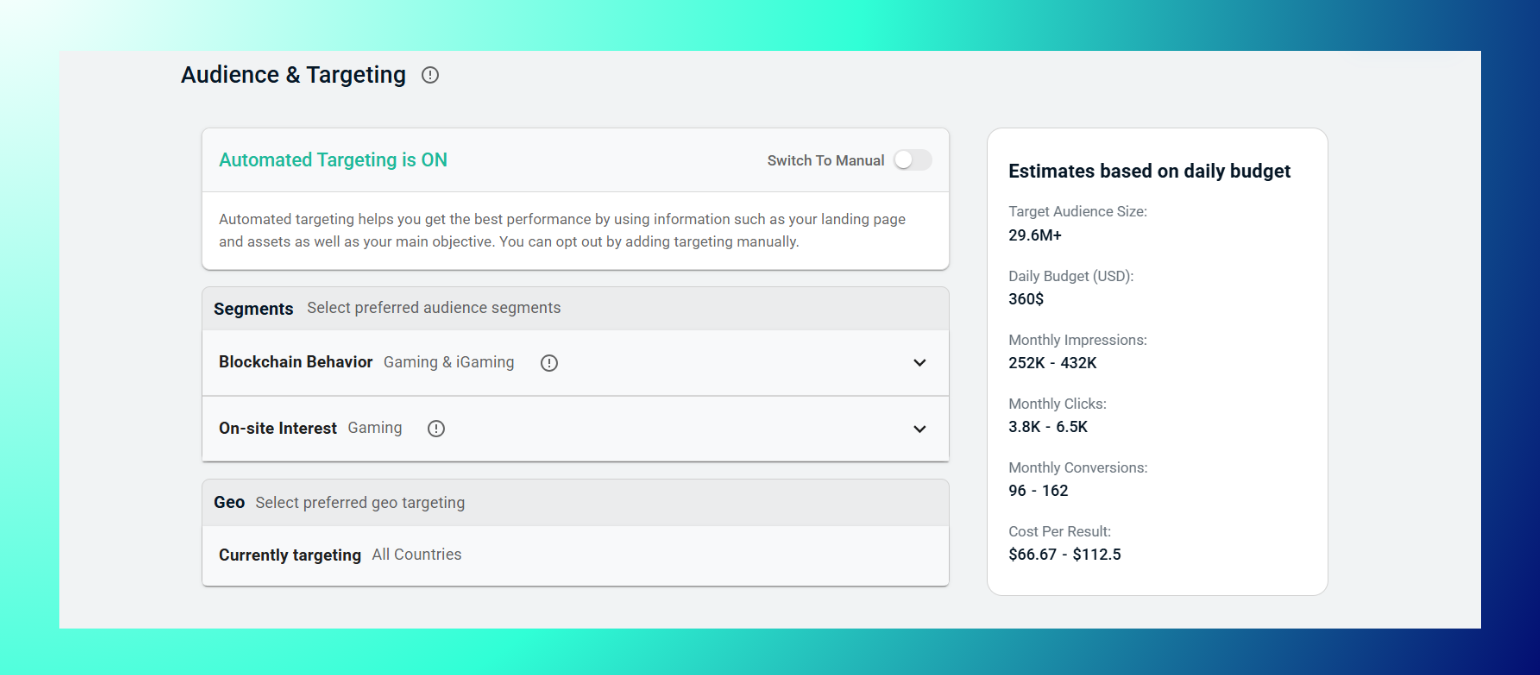
Step 1: Choose Automated or Manual Targeting
By default, Automated Targeting is ON. The platform builds your audience automatically using signals from your landing page, assets, and campaign objective, with no manual setup needed.
If you want full control, toggle Switch To Manual. This unlocks manual segment and geo selection.
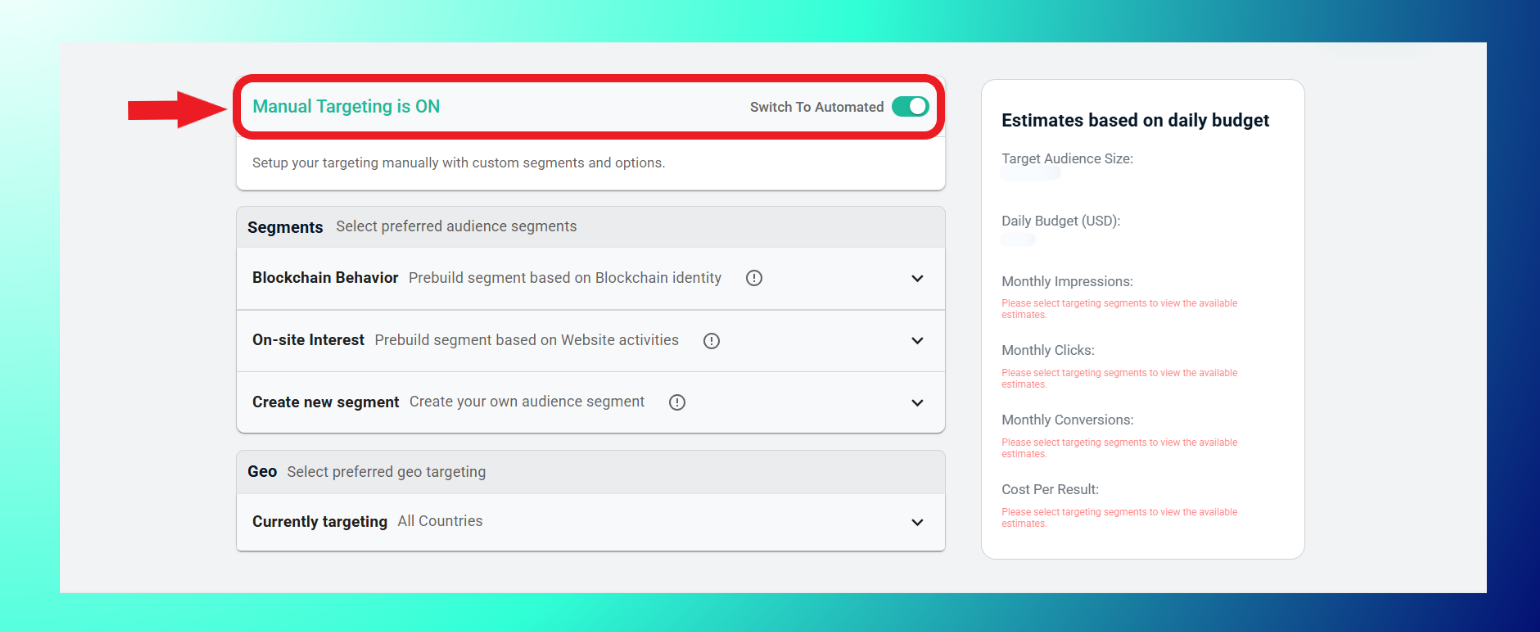
Note: Switching to Manual can significantly change your target audience size, for example going from 40.5M+ to 154.4M+, because automated targeting narrows based on your landing page and assets, while manual starts broader until you add segments.
Step 2: Select Audience Segments (Manual mode only)
Once Manual Targeting is on, you'll see three segment options:
- Blockchain Behavior: Pre-built segments based on on-chain identity (e.g. Web3 Native, Assets, Finance, Gaming & iGaming, Tech & SaaS, B2B).
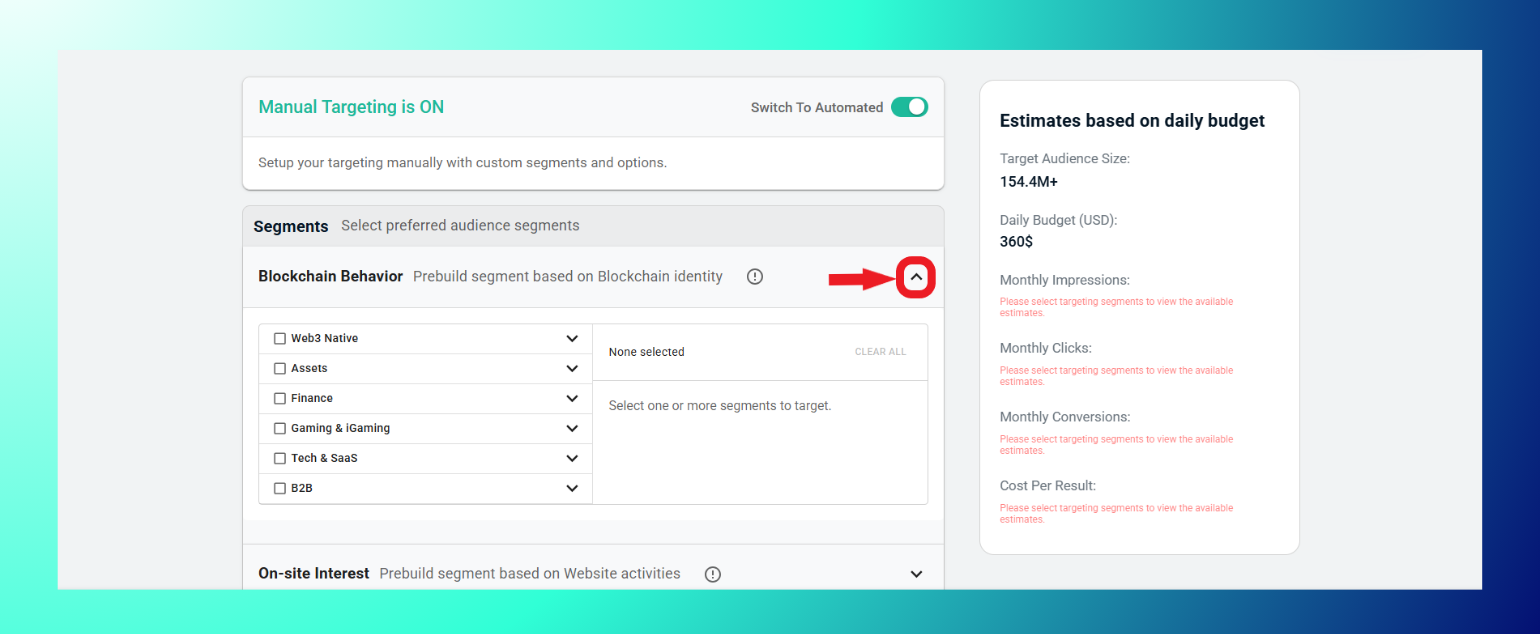
- On-site Interest: Pre-built segments based on website activity and content interests (e.g. Finance, Gaming, AI, SaaS, Adult, Custom/Partner).

- Create new segment: Build your own custom audience from your own data or by combining segments.
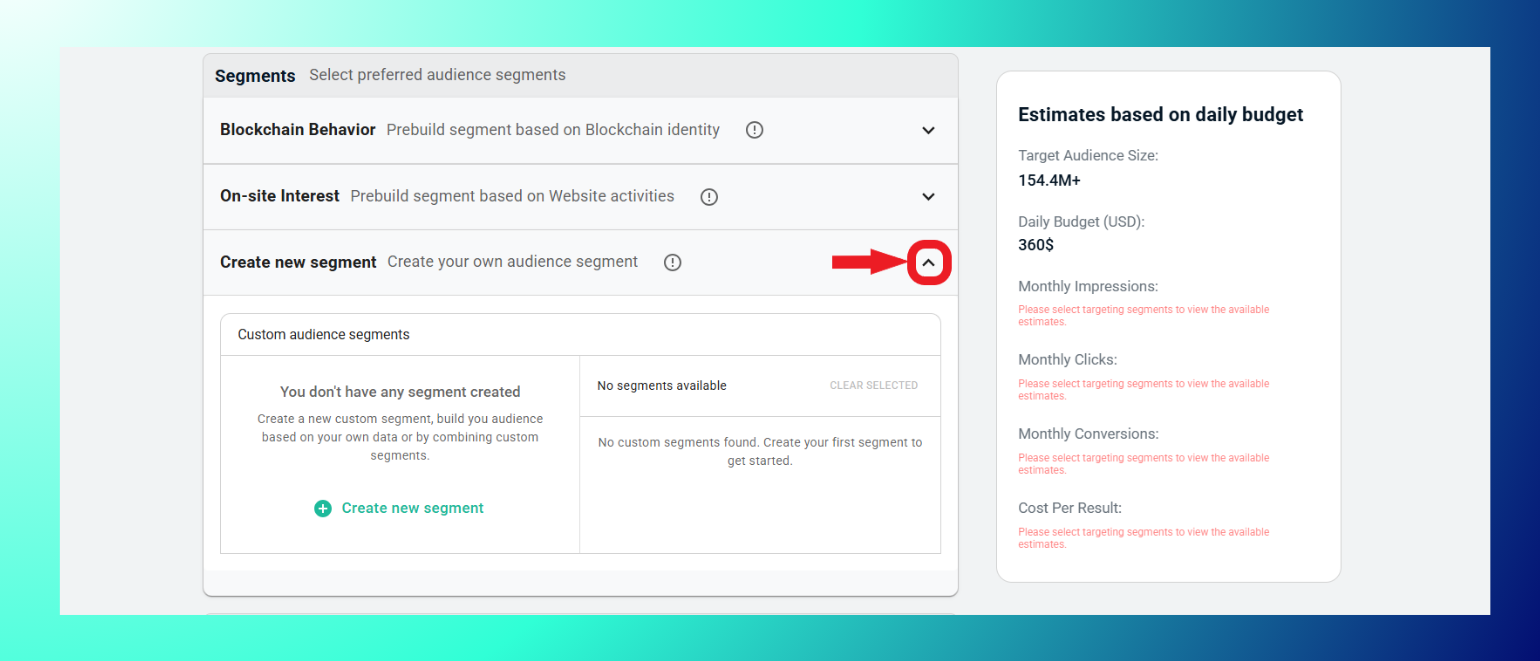
Step 3: Set Geo Targeting
Under Geo, choose where your campaign runs:
- All countries and territories: Default, runs globally.
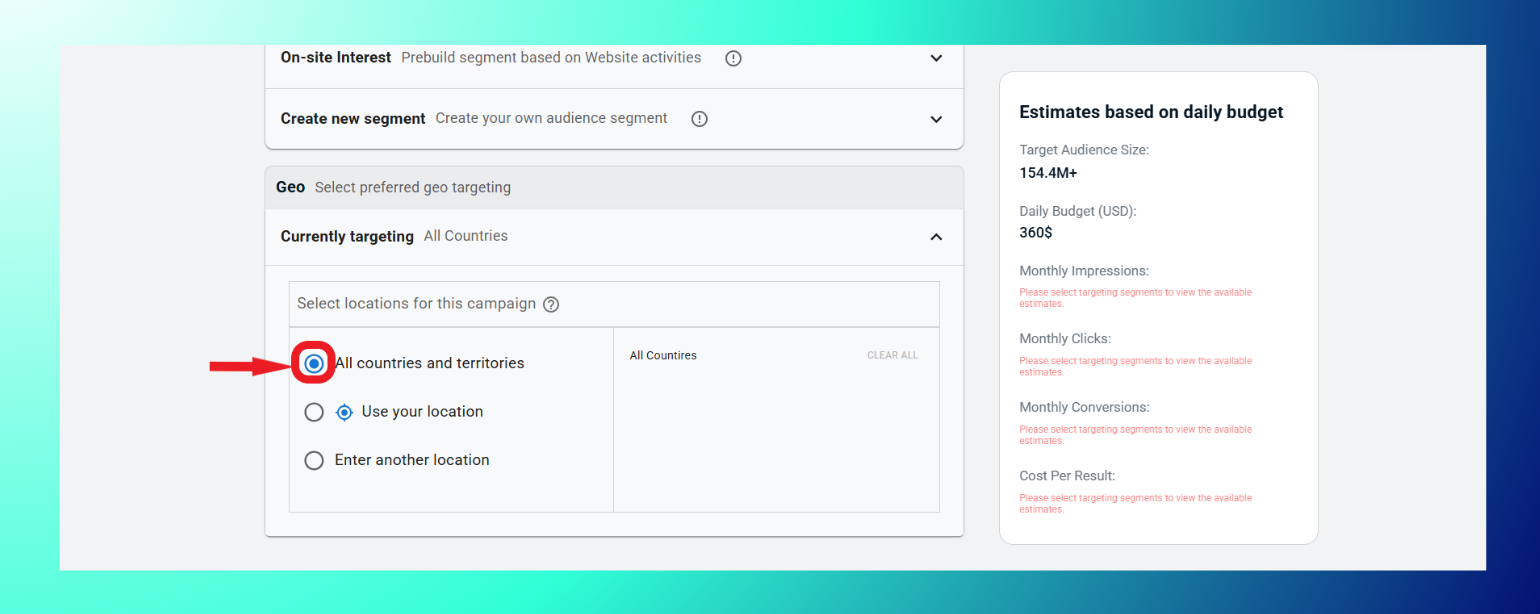
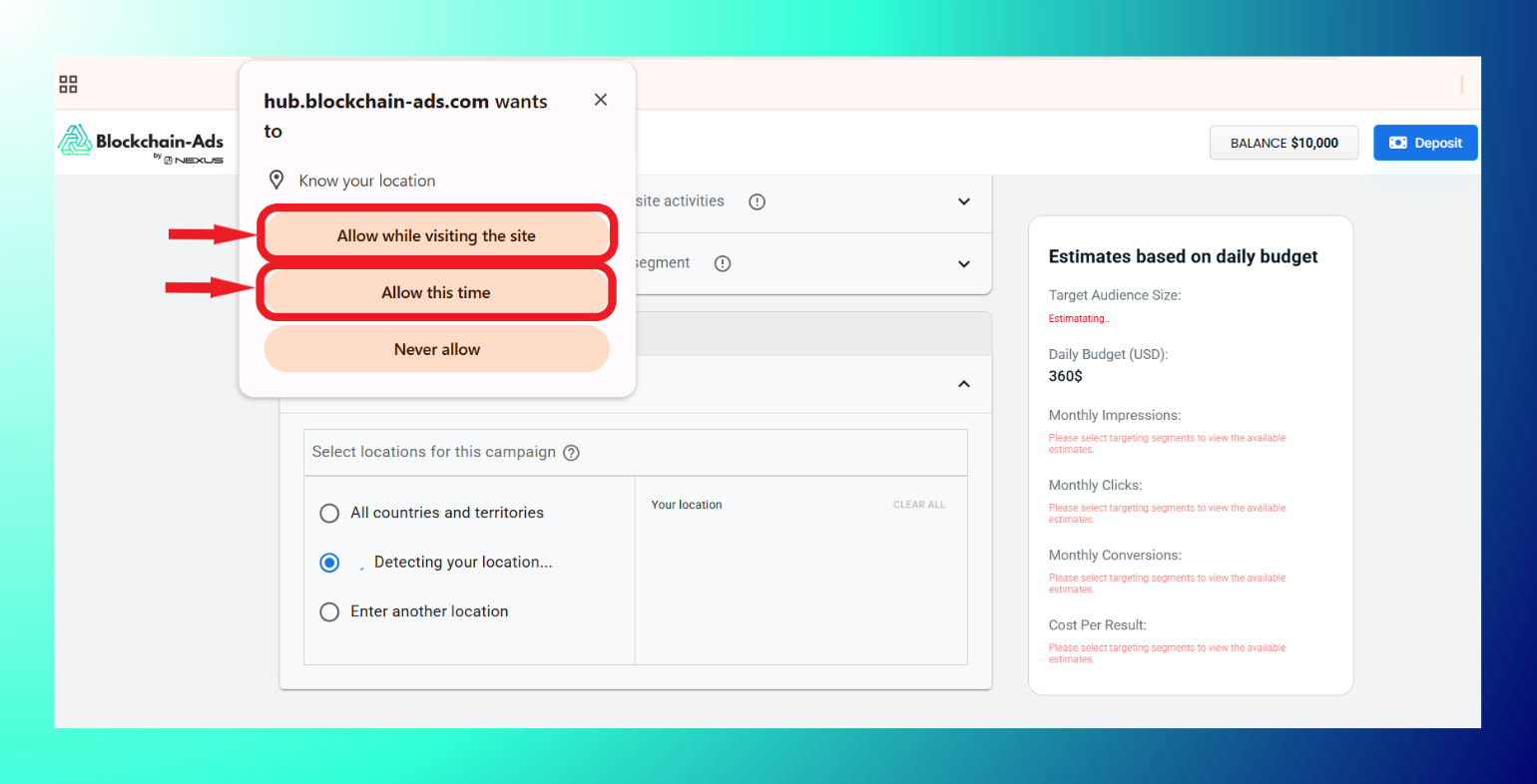
- Use your location: Targets based on your account's detected location.
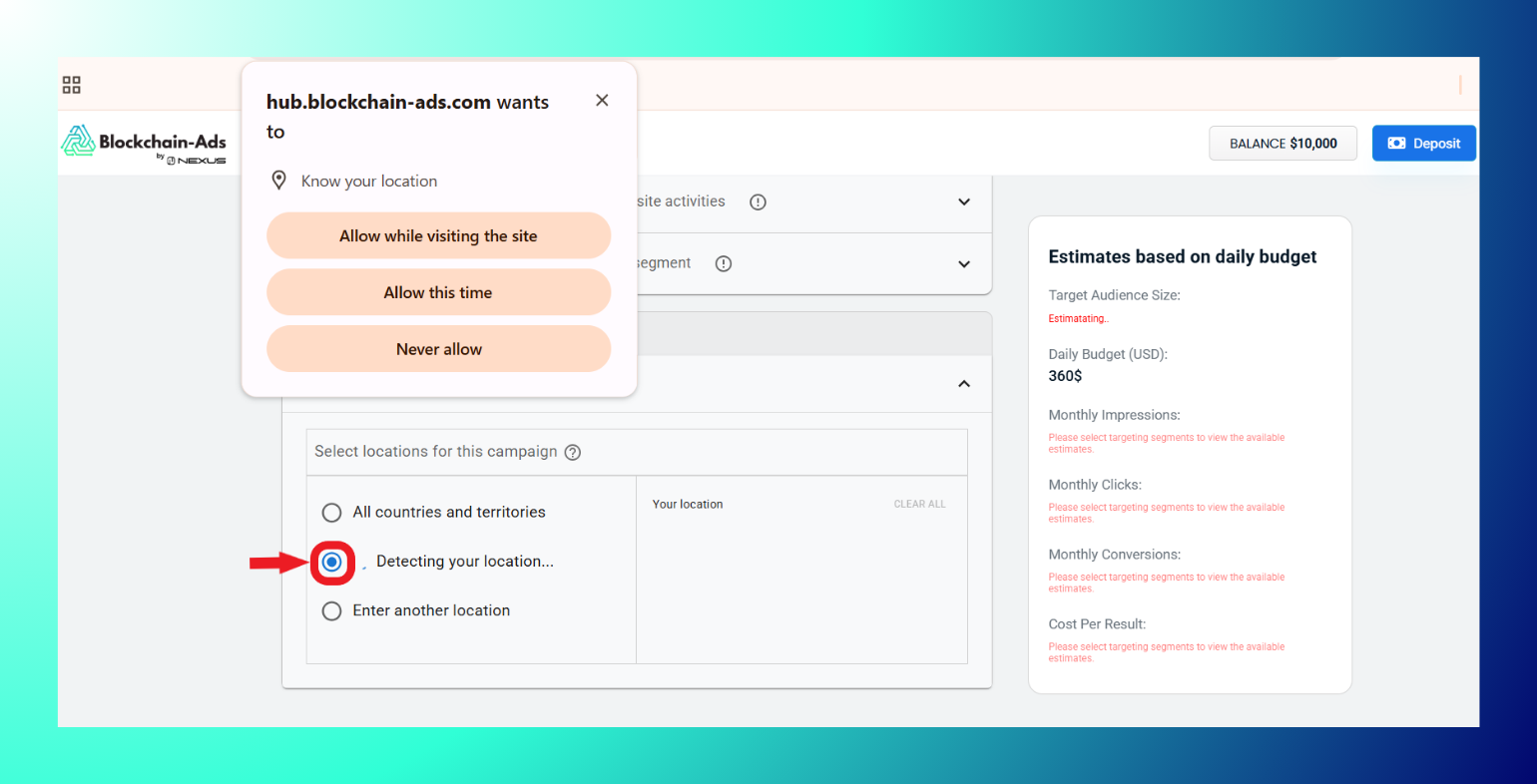
Note: You must grant the platform access to check your location to use this option
- Enter another location: Manually pick countries, regions, or continents.
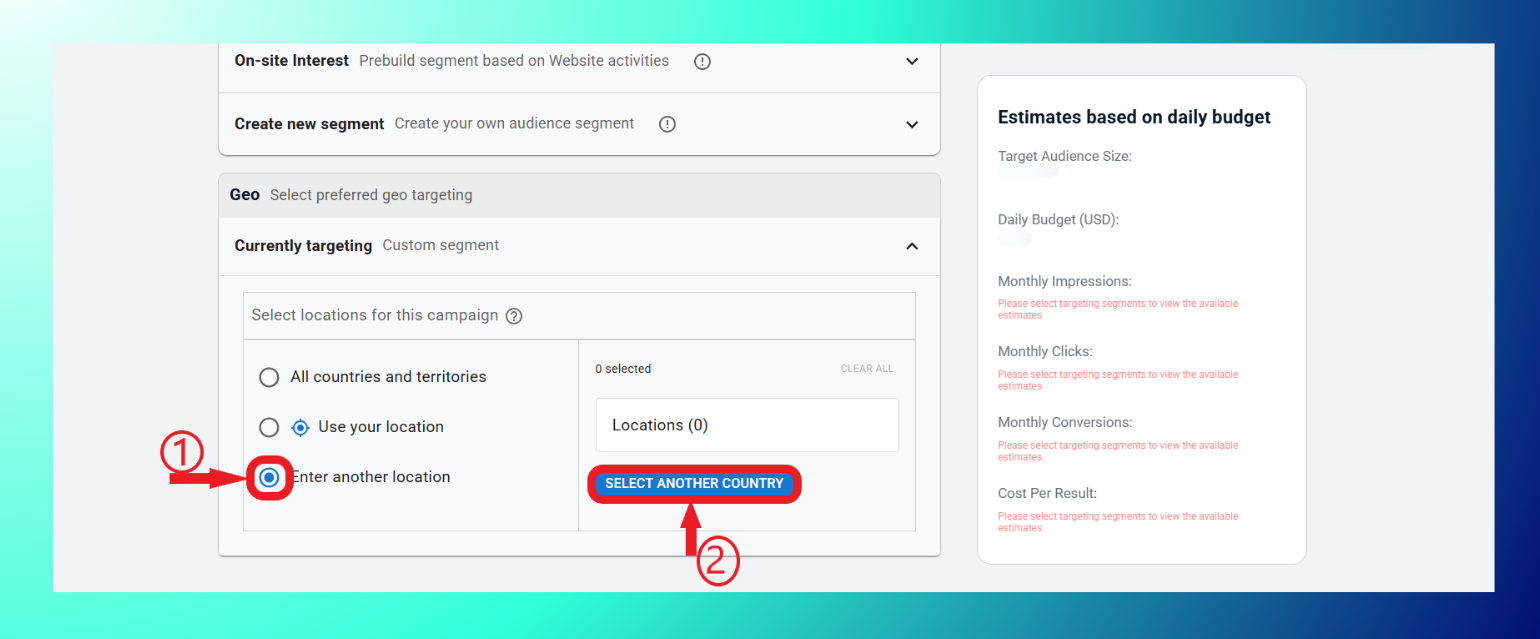
Use the quick-selection buttons (Europe, Asia, Africa, etc.) to pick a location or search.
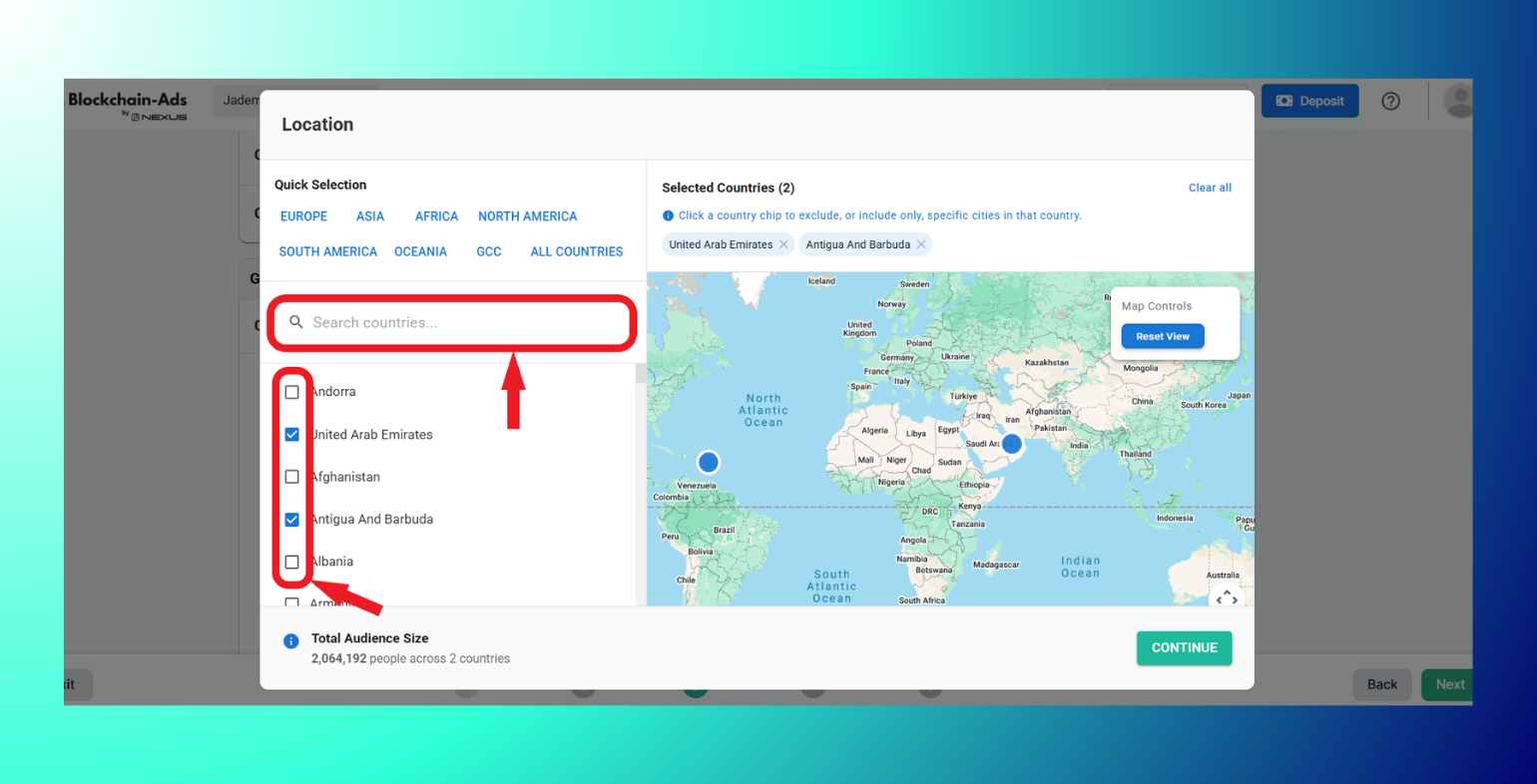
For a full walkthrough of country/city-level exclusions and audience size impact, see → GEO and Device Targeting.
Step 4: Review Your Estimates
The right-hand panel updates live as you adjust targeting, showing:
- Target Audience Size
- Daily Budget
- Monthly Impressions, Clicks, Conversions
- Cost Per Result
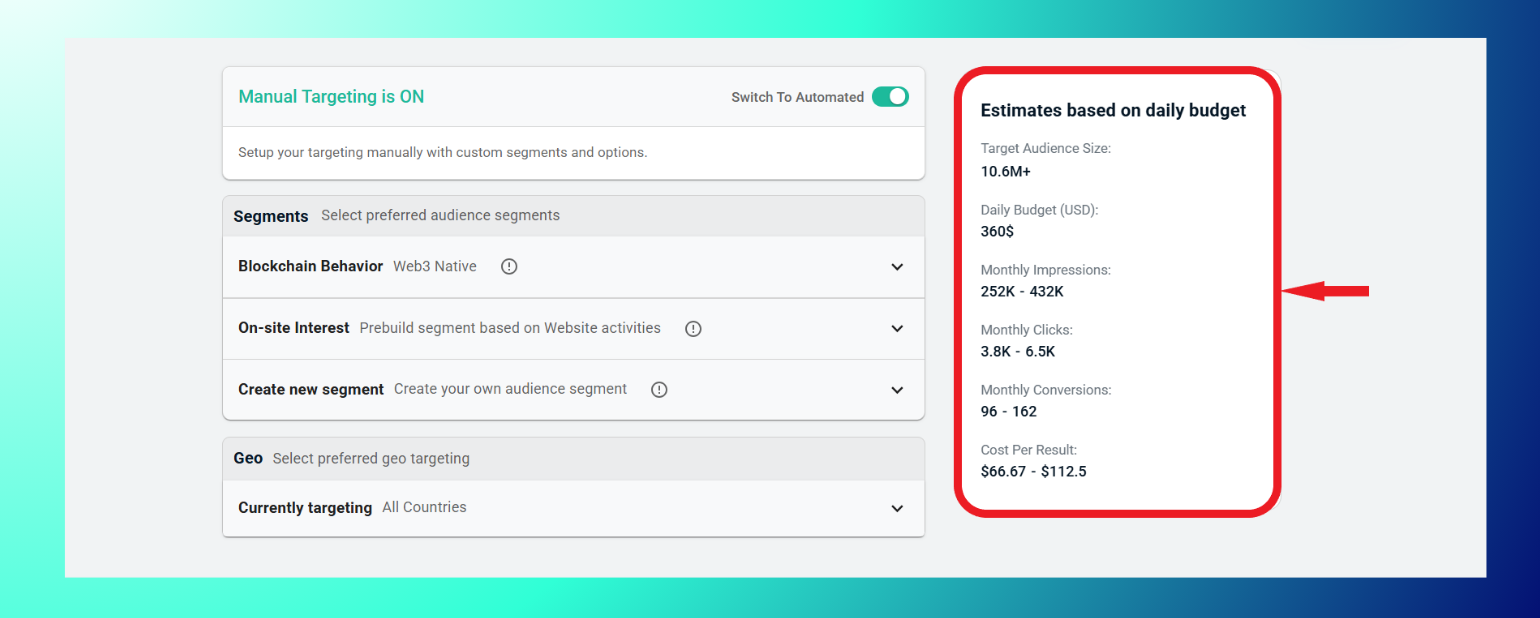
Note: If you haven't selected any segments yet in Manual mode, this panel will show "Please select targeting segments to view the available estimates" in place of numbers. This isn't an error; it's a placeholder until you make a selection.
Once your targeting is set, click Next to move to Creatives.